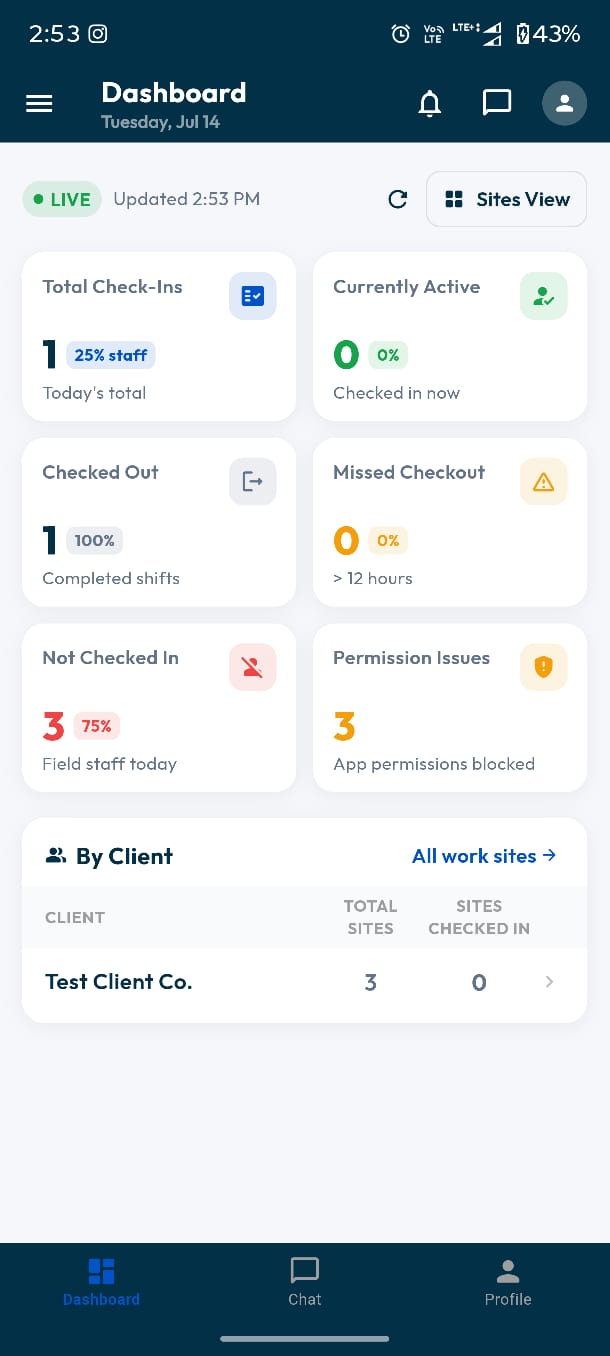
Arrive on site
The guard opens the app and sees the site they are rostered to, with the geofence they need to be inside.
Administrators get the same tiles on mobile, including Sites View.
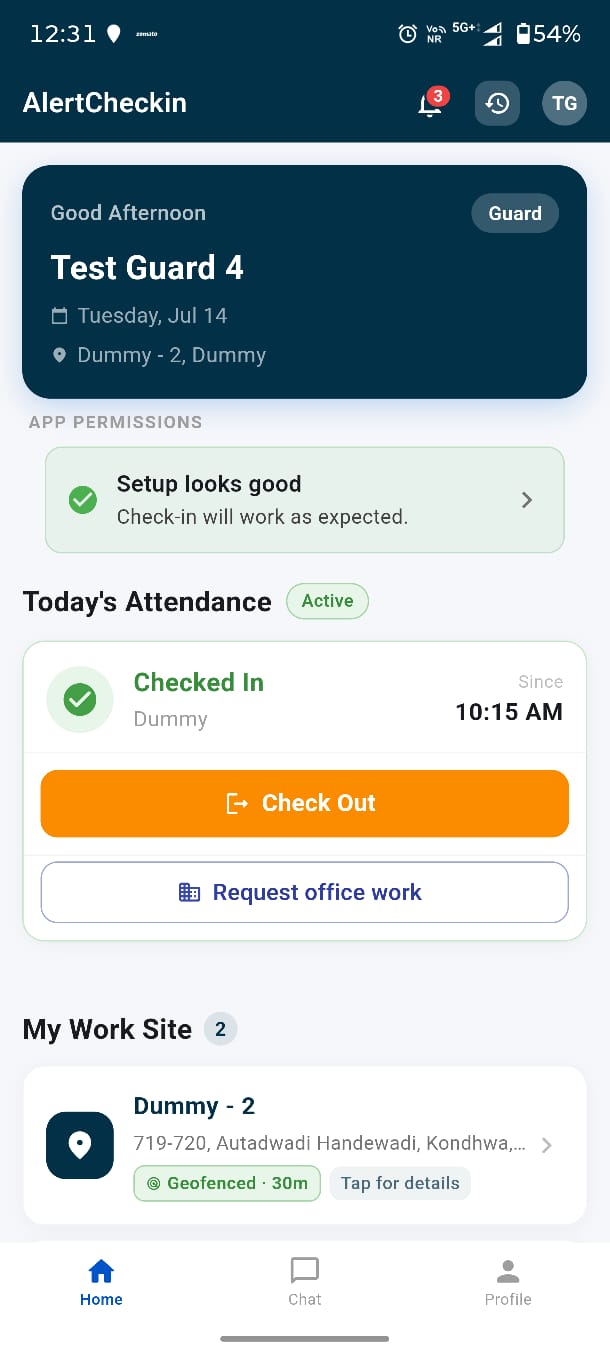
Check in
One tap captures GPS, a timestamped selfie and the battery level. The web dashboard shows it within seconds.
The guard view: current status, one-tap check out, and the geofenced site.
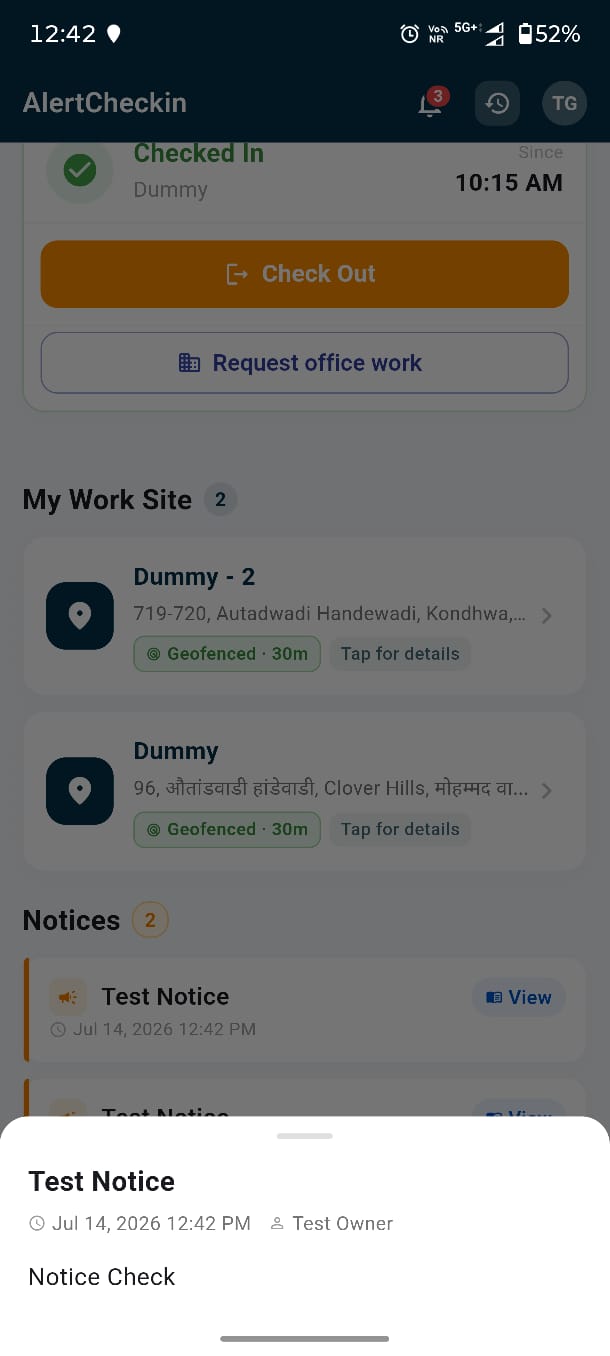
Read the brief
Instructions posted once from the office are waiting on the phone of everyone the site applies to.
Notices surface on the guard's home screen.
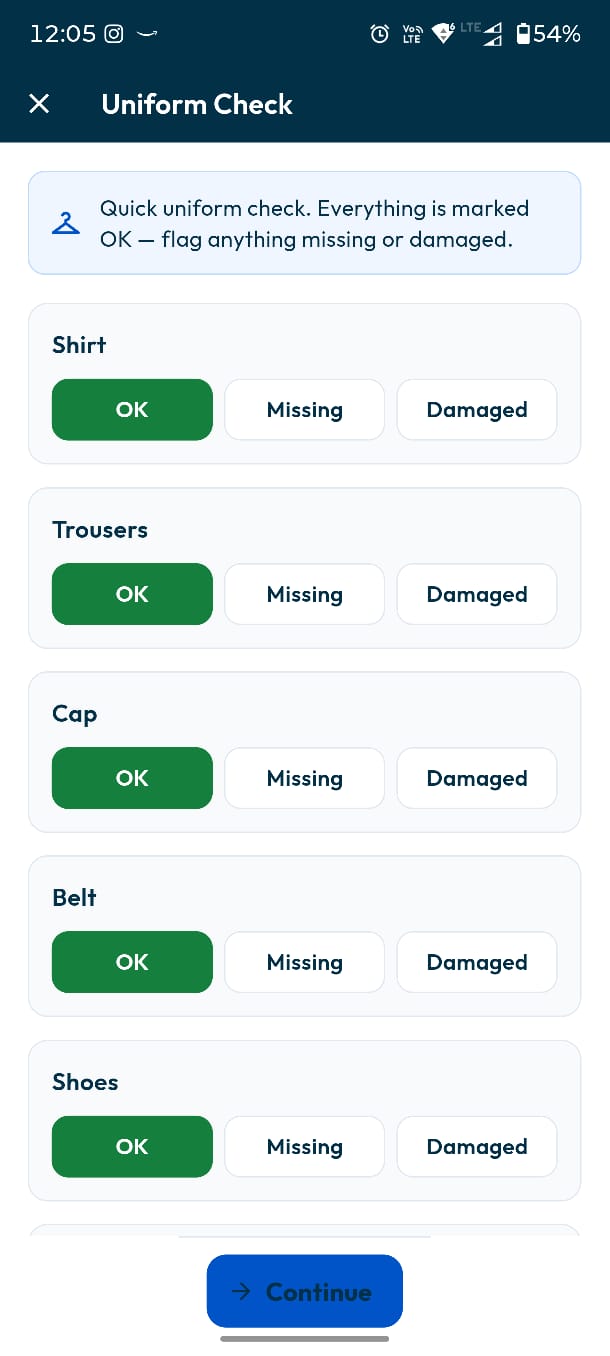
Uniform check
Missing or damaged kit is reported at check-in and lands on the supervisor's flagged-issues screen.
Everything defaults to OK — the guard only flags exceptions.
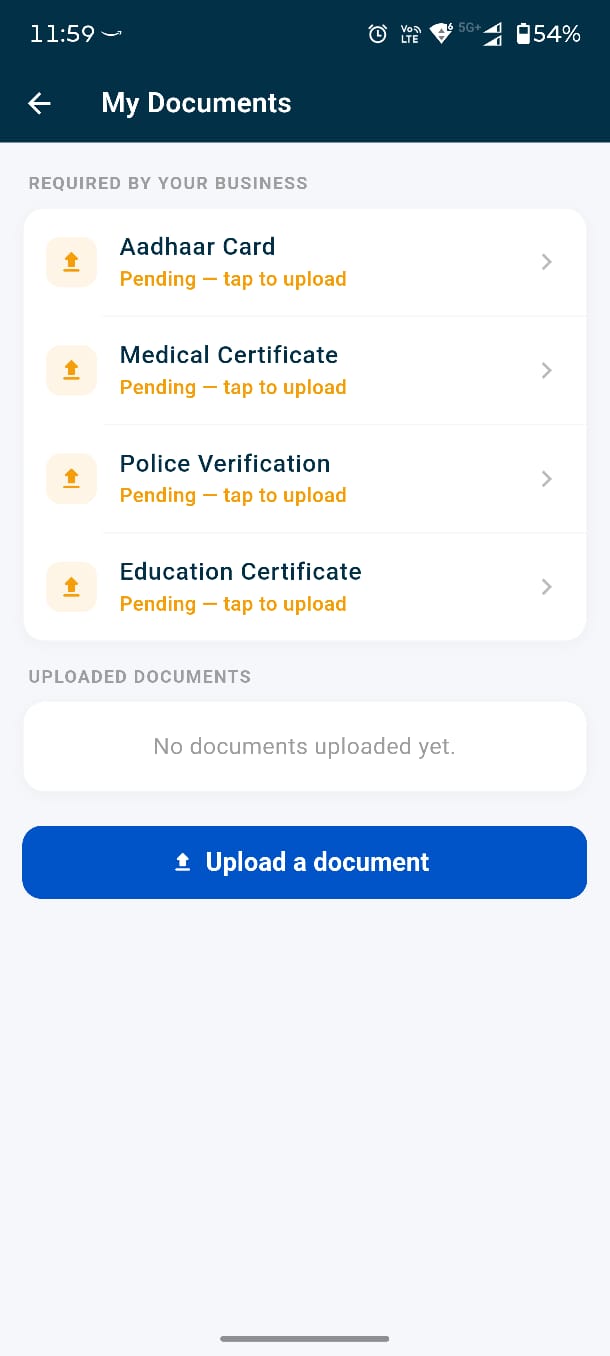
Upload documents
Licences and clearances are submitted from the phone and tracked against the compliance roster.
Uploading is done from the phone, in the moment.
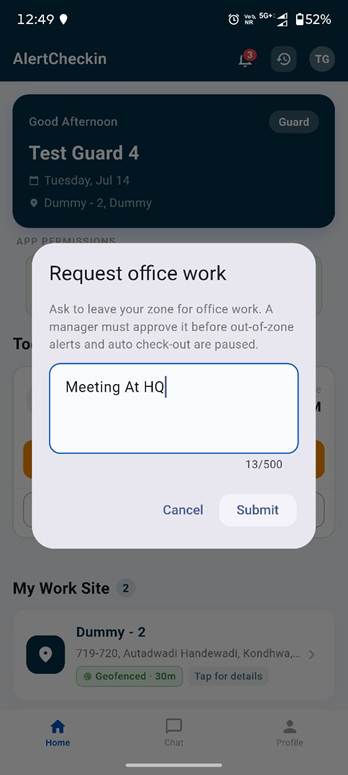
Request office work
Leaving site mid-shift needs approval, which the manager grants or denies from the web.
The dialog states the consequence before the guard submits.
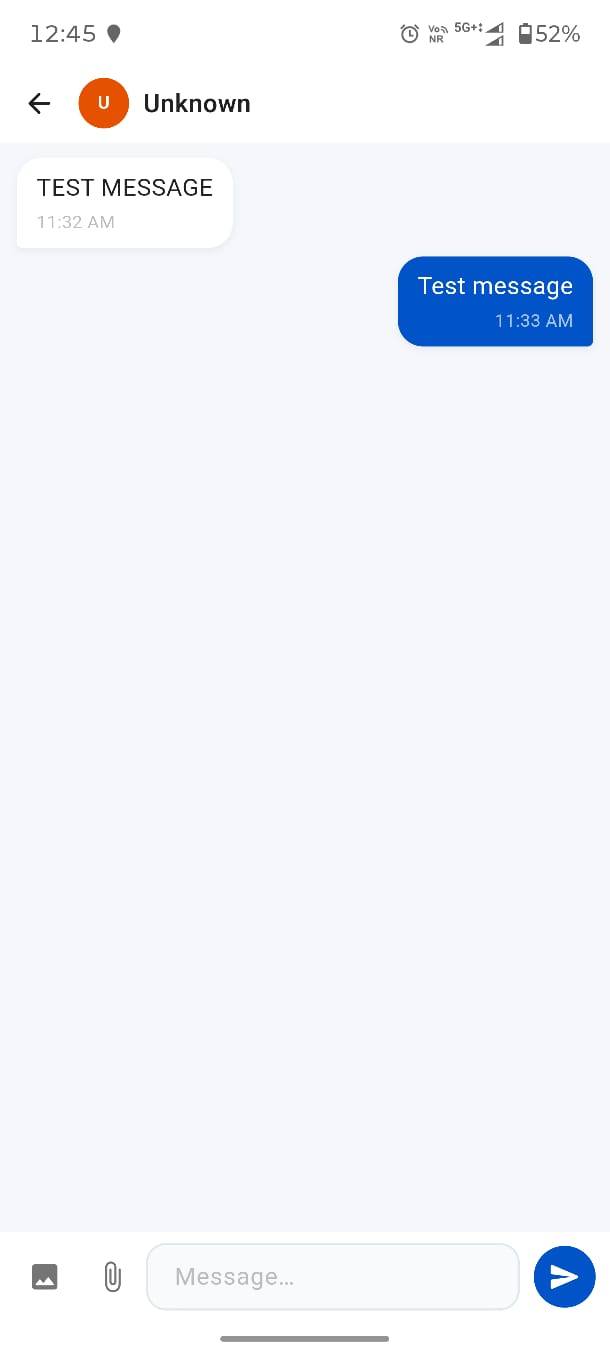
Stay in contact
Direct messaging with the office, inside the same app that holds the check-in record.
Chat sits in the app's bottom navigation, next to Home.
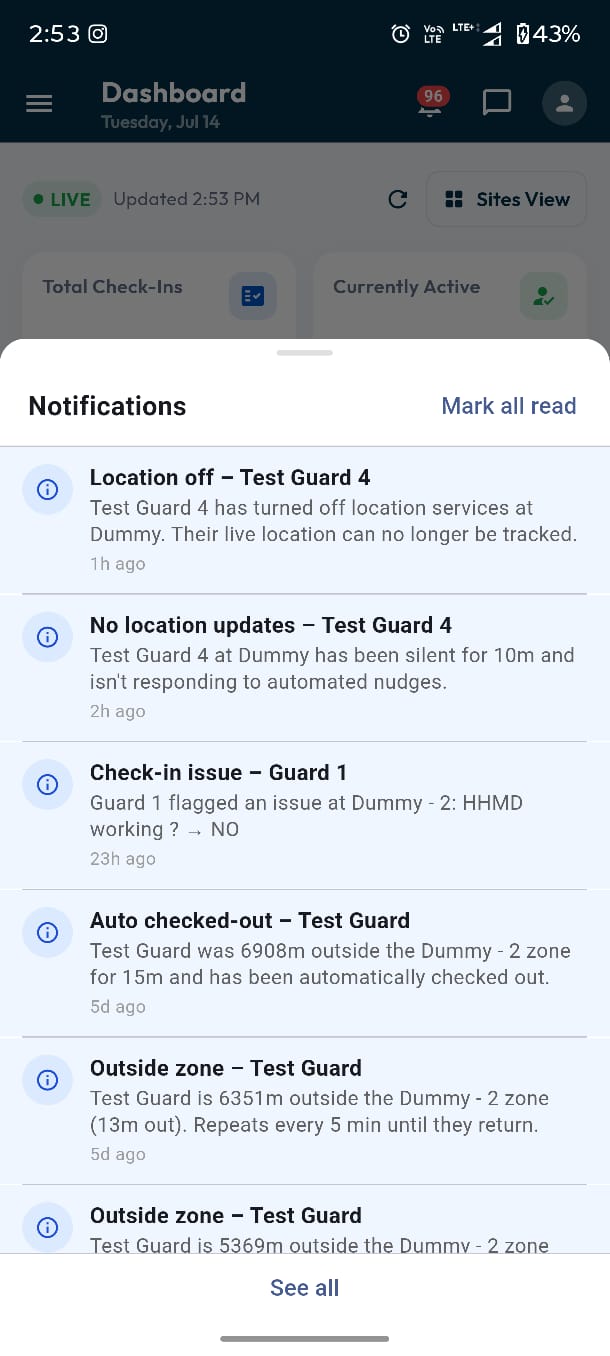
Get alerted
Shift reminders and escalations arrive as push, so nothing depends on someone watching a screen.
Alerts reach the guard on the phone.
Now see the other side of it
Every action above lands on the operations dashboard within seconds. Step into a live account and watch it from the supervisor's chair.
Open the live demo